

My Account
Purpose: Manage personal profile details, update passwords, and secure your account using Multi-Factor Authentication (2FA).
Overview
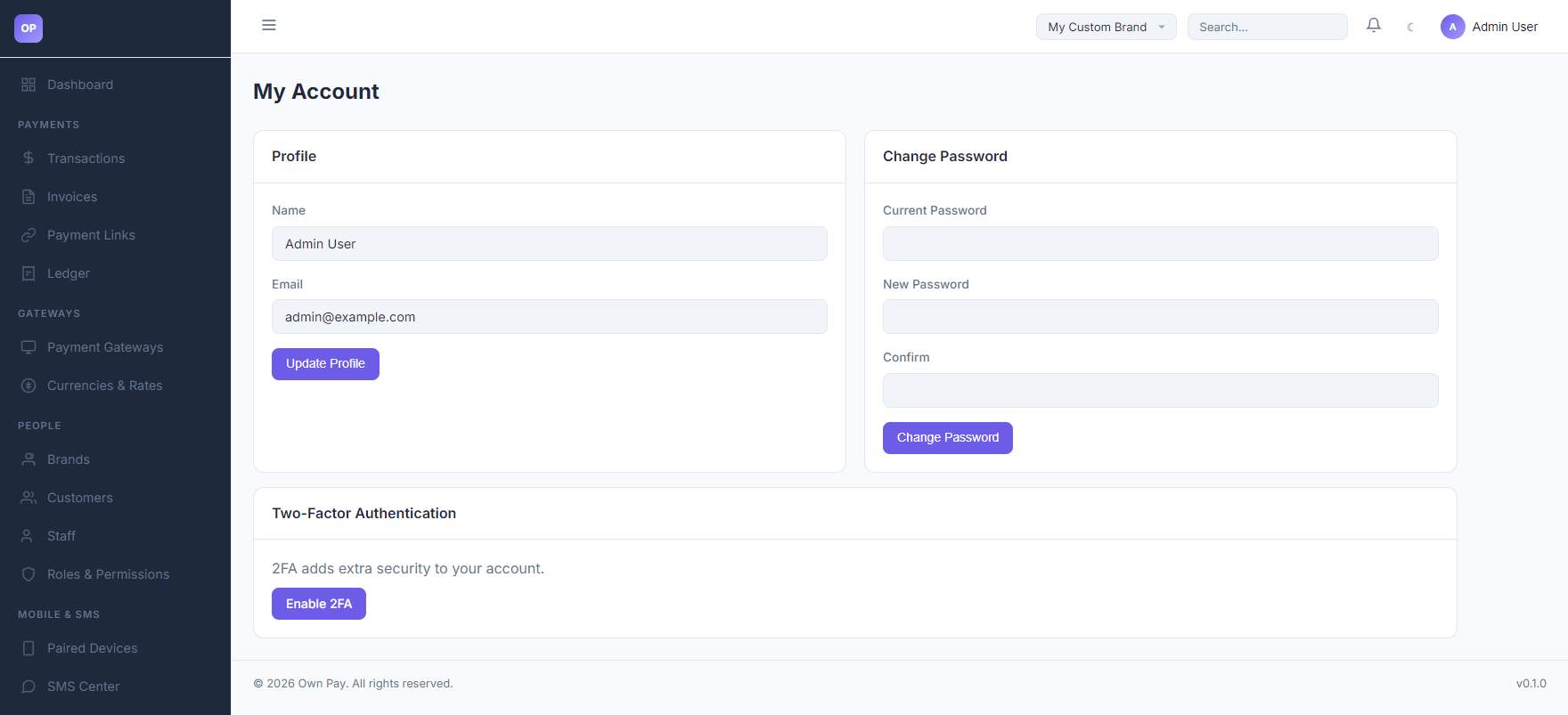
The My Account settings page allows administrators and staff to update their display names, registered email addresses, and passwords. It also acts as the control panel for securing administrative access using RFC 6238-compliant Two-Factor Authentication (TOTP).
Getting Here
To access your personal account settings:
- Log in to the OwnPay admin dashboard.
- In the top navbar or the left sidebar navigation footer, click on your profile name.
- Select My Account or Account Settings from the dropdown menu.
Page Sections
The Account Settings page consists of the following sections:
1. Profile Information
Update your basic identification details:
- Name: Your visual display name used throughout the platform audit logs.
- Email: Your email address used for login and password resets.
- Update Profile: Saves the profile edits.
2. Update Password
Securely rotate your access credentials:\
- Current Password: Required to authenticate changes.
- New Password: Must be at least 8 characters.
- Confirm Password: Must match the new password.
- Update Password: Verifies and saves the new credentials, automatically logging out active sessions to enforce re-login.
3. Two-Factor Authentication (2FA) Setup
Enforce multi-factor verification:
- Status Badge: Shows
Enabled(green) orDisabled(red). - Setup/Manage 2FA Button: Redirects to the two-factor authentication setup subpage.
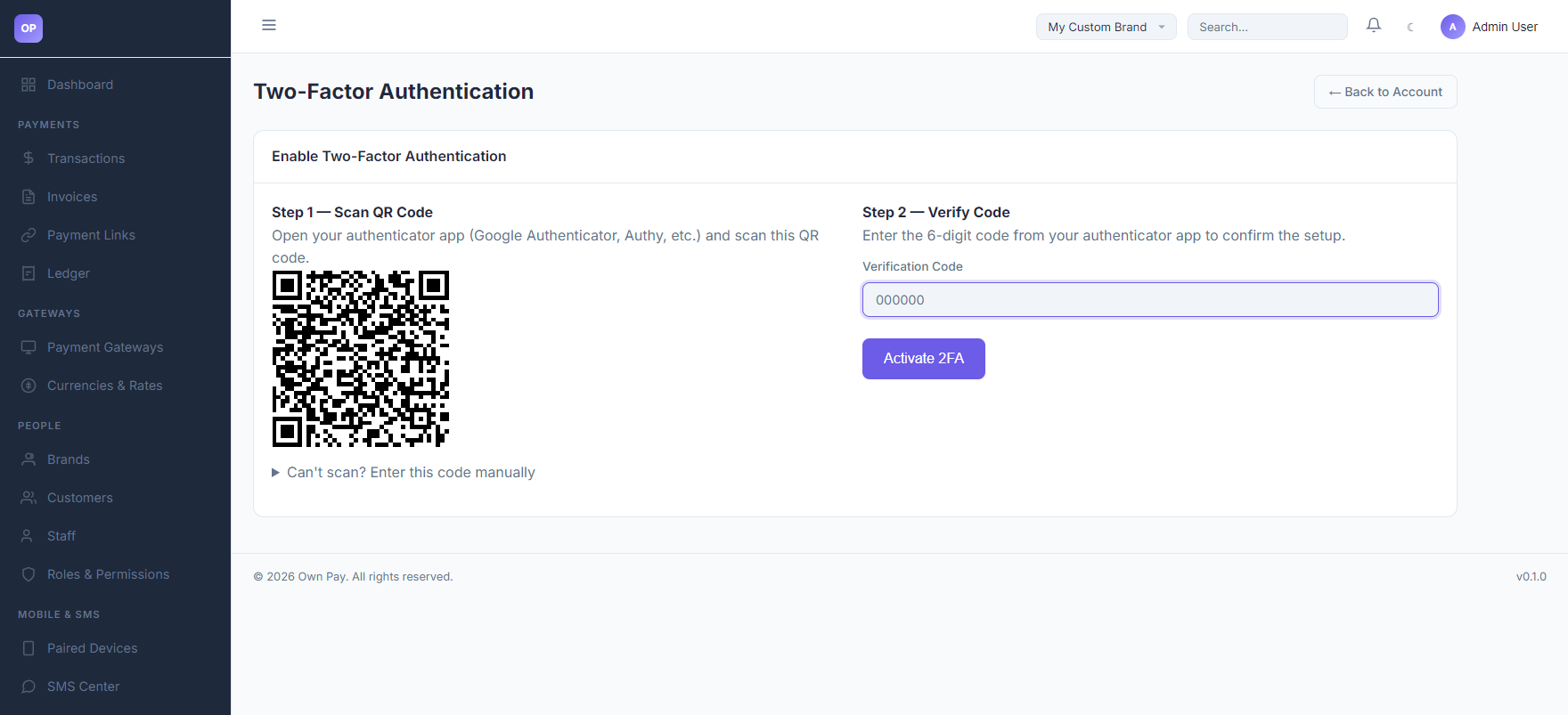
- QR Code & Secret (Setup screen): Authenticator app sync targets.
- Verification Code (Setup screen): Six-digit input to confirm successful app sync.
Fields & Options Reference
Profile Settings Reference
| Field Name | Type | Required? | Example / Default | Description |
|---|---|---|---|---|
| Name | Text Input | Yes | John Doe | Administrator display name. |
| Text Input | Yes | [email protected] | Registered email address used for dashboard login. |
Password Rotation Reference
| Field Name | Type | Required? | Example / Default | Description |
|---|---|---|---|---|
| Current Password | Password Input | Yes | ••••••••• | Existing password to authenticate changes. |
| New Password | Password Input | Yes | ••••••••• | New password (minimum 8 characters). |
| Confirm Password | Password Input | Yes | ••••••••• | Repeat the new password to confirm. |
Step-by-Step: How to Use This Page
Updating Your Name or Email
- Navigate to My Account.
- Edit the Name or Email textboxes.
- Click the Update Profile button.
- A success flash message will confirm the details have been saved.
Changing Your Password
- Scroll down to the Update Password section.
- Enter your Current Password.
- Type a strong, unique New Password (at least 8 characters, combining uppercase, lowercase, numbers, and symbols).
- Re-type the new password in the Confirm Password field.
- Click Update Password.
- The system will update your password, log you out of your current session, and redirect you to the login screen to sign in with your new credentials.
Enabling Two-Factor Authentication (2FA)
- On the My Account dashboard, click Manage 2FA (or click Setup 2FA).
- The Two-Factor Setup screen will display a QR code and a backup text secret.
- Open your mobile authenticator app (e.g. Google Authenticator, Authy, Aegis, Bitwarden).
- Scan the QR code, or manually input the backup text secret.
- Once your authenticator app begins generating 6-digit codes, enter the active code in the Verification Code field in OwnPay.
- Click Enable 2FA.
- Upon validation, the status updates to
✓ Enabled. Future login attempts will require entering your email, password, and the rolling 2FA code.
Disabling Two-Factor Authentication (2FA)
- On the My Account dashboard, click Manage 2FA (or click Disable 2FA).
- Scroll to the disable section.
- Enter your current account password in the confirmation field to verify identity.
- Click Disable 2FA.
- The system will remove your 2FA configurations.
Configuration Guide
- Secure Key Storage:
- OwnPay utilizes secure encryption wrappers for sensitive account parameters. User passwords are hashed with
Argon2idusing high-iteration variables. - TOTP secrets (
totp_secret_encin theop_merchant_userstable) are stored utilizingAES-256-GCMencryption.
- OwnPay utilizes secure encryption wrappers for sensitive account parameters. User passwords are hashed with
- TOTP Drift Window:
- OwnPay validates OTP codes with a drift allowance window of
1(allowing codes +/- 30 seconds from current server time to compensate for slight device time mismatches).
- OwnPay validates OTP codes with a drift allowance window of
Best Practices
- ✅ Do: Enable 2FA immediately on all administrative and staff profiles.
- ✅ Do: Write down and store the 2FA backup text secret in a secure physical location or password vault before enabling.
- ❌ Don't: Share your password or 2FA secrets with anyone, including support staff.
- ❌ Don't: Disable 2FA unless transferring the profile to a new authenticator device.
Must Do
IMPORTANT
If a staff member or administrator loses access to their authenticator device and is locked out, the super-administrator must clear the user's two_factor_enabled and totp_secret_enc values in the database, or reset their account via the Staff settings menu.
Related Pages
- Staff — Create and manage administrator and team profiles.
- Roles & Permissions — Assign specific permission matrices to staff accounts.
Notes
- 2FA verification attempts enforce rate-limiting rules to block brute-force guessing attacks.