

Themes
Purpose: Select visual themes, activate checkout template structures, and upload custom stylesheets.
Overview
The Themes page manages the HTML/CSS template envelopes used to render customer-facing checkout interfaces (/checkout/{token}) and payment link sheets (/pay/{slug}). OwnPay supports modular theme plugins that change layouts, animations, and input patterns.
Getting Here
To access the Themes manager:
- Log in to the OwnPay admin dashboard.
- Under the APPEARANCE section in the left sidebar, click Themes.
Page Sections
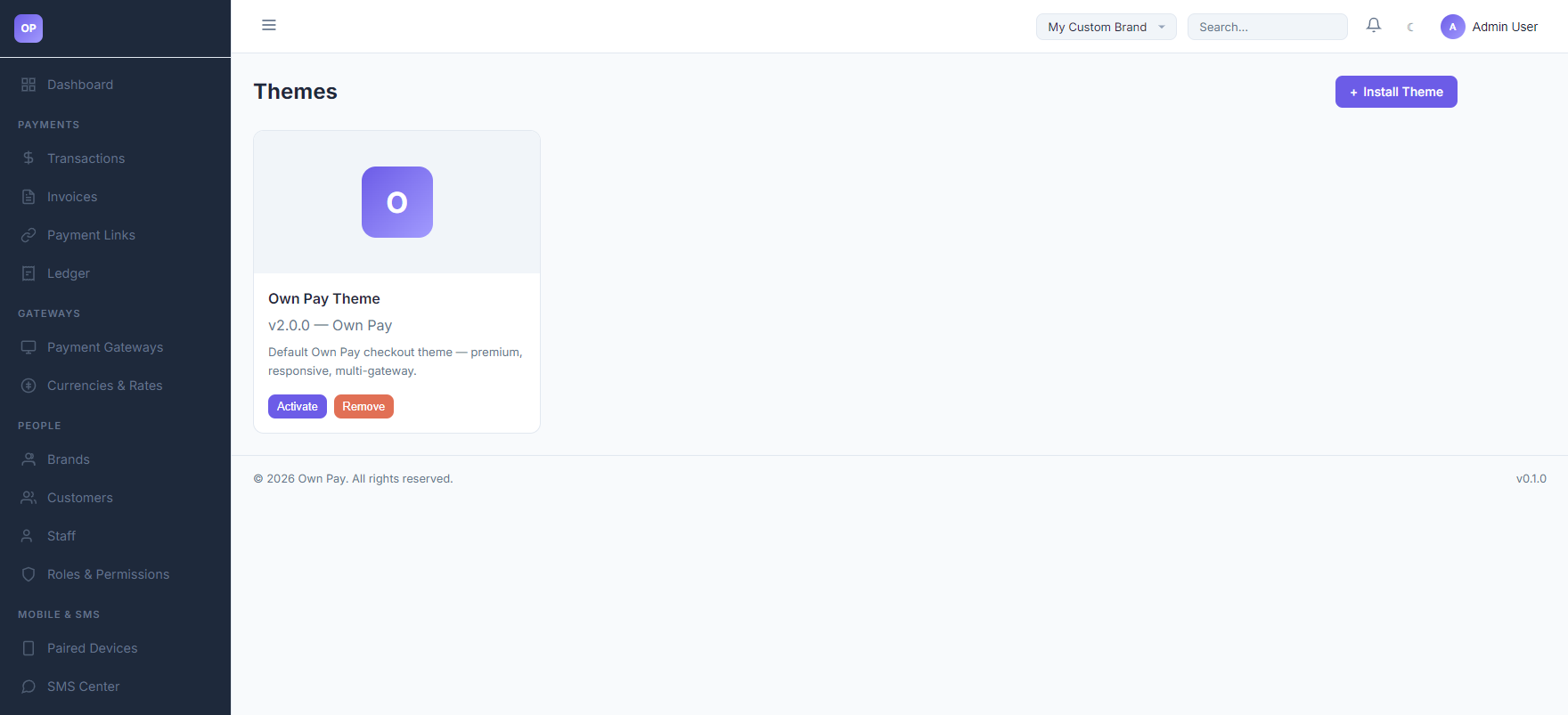
The Themes dashboard displays:
1. Active Theme Cards
Cards displaying details for each theme package discovered on the file system:
- Theme Name: The display title (e.g.
Own Pay Theme). - Version & Author: Package version and developer credits (e.g.
v2.0.0 — Own Pay). - Description: Details outlining features of the theme (e.g. "Default Own Pay checkout theme — premium, responsive, multi-gateway").
- Controls: Click Activate to make this the active global checkout theme, or Remove to delete the files from the server.
2. Install Theme
Located at the top header by clicking the + Install Theme link:
- Allows administrators to upload a packaged
.ziptheme archive directly to the server.
Step-by-Step: How to Use This Page
Activating a Theme
- Navigate to the Themes dashboard.
- Find the target theme card.
- Click the Activate button.
- The system will update your visual settings. Any active checkout sessions will load this layout structure instantly.
Configuration Guide
- Theme Slug Mapping:
- System settings save the active theme identifier in database settings as
active_theme. - The default theme has a manifest slug of
own-pay. - Visual assets (logos, favicons, custom colors) configured under Branding Settings or brand contexts are injected into Twig templates dynamically.
- System settings save the active theme identifier in database settings as
Best Practices
- ✅ Do: Test custom themes on desktop and mobile browsers to ensure input fields (like the card or phone number boxes) remain accessible.
- ✅ Do: Keep the default
own-paytheme installed as a fallback. - ❌ Don't: Delete an active theme. Always activate an alternative template first.
- ❌ Don't: Upload unverified zip archives as they could contain malicious code.
Related Pages
- Branding Settings — Customize logo assets.
- Landing Page Settings — Modify public home text blocks.
- Payment Gateways — Configure manual and API payment rules.