

System Settings
Purpose: Manage global system settings, configure timezones, adjust public base URLs, and toggle maintenance mode.
Overview
The System Settings panel is the master configuration board for your OwnPay platform. It handles localization, email support mappings, dashboard titles, public base URLs, and platform maintenance controls.
Getting Here
To access the System Settings:
- Log in to the OwnPay admin dashboard as the super-administrator.
- Under the SYSTEM section in the left sidebar, click Settings.
- The page defaults to the General settings tab.
Page Sections
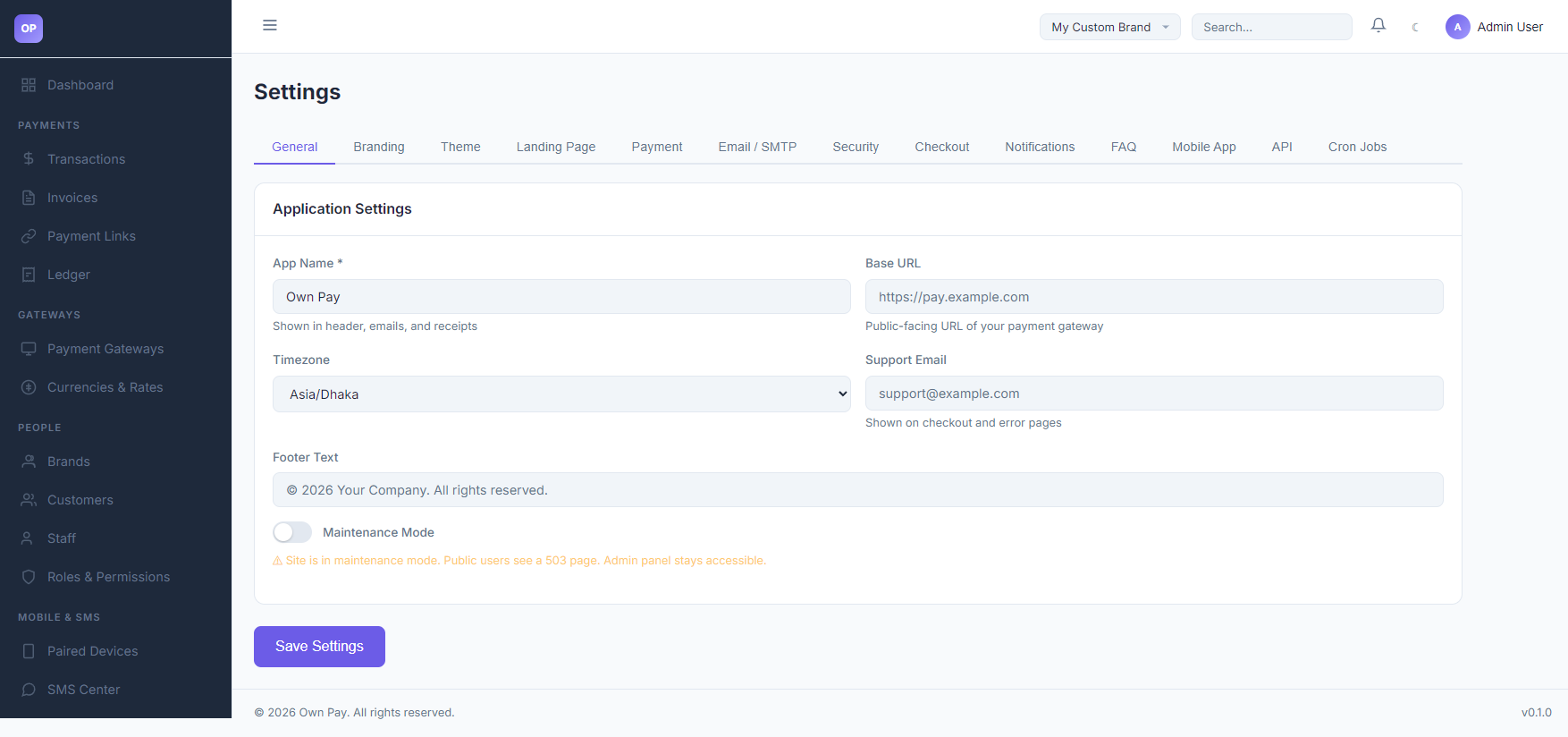
The General settings panel is divided into two sections:
1. Application Settings
- App Name: The visual name of the platform (e.g.
Own Pay), injected into headers, customer emails, and payment invoices. - Base URL: The primary domain name where OwnPay is hosted (e.g.,
https://pay.example.com), used to construct links for checkout routes. - Timezone: Dropdown to select the default system timezone. This offset aligns financial reports, transaction timestamps, and logs.
- Support Email: The global support email address displayed on checkout flows and payment error screens.
- Footer Text: Custom copyright or company text shown at the bottom of the admin panel.
2. Maintenance Mode Control
- Maintenance Mode Toggle: When enabled, all customer-facing checkout screens and landing pages are blocked, returning an HTTP 503 Service Unavailable page. The administrative dashboard remains fully accessible to logged-in staff.
Fields & Options Reference
General Settings Field Reference
| Field Name | Type | Required? | Example / Default | Description |
|---|---|---|---|---|
| App Name | Text Input | Yes | Own Pay | Platform visual name. |
| Base URL | Text Input | No | https://pay.example.com | Main server access URL. |
| Timezone | Select | Yes | Asia/Dhaka | Sets localized reporting offsets. |
| Support Email | Text Input | Yes | [email protected] | Customer contact for support issues. |
| Footer Text | Text Input | No | © 2026 Your Company... | Copyright footer text. |
| Maintenance Mode | Switch | No | Disabled | Block public checkout routes for audits. |
Step-by-Step: How to Use This Page
Updating System Timezone
- Navigate to SYSTEM → Settings.
- Scroll to the Timezone dropdown.
- Select your local timezone (e.g.,
Asia/DhakaorEurope/London). - Click Save Settings in the footer to apply.
Activating Maintenance Mode
- Scroll down to the Maintenance Mode section.
- Toggle the switch to active.
- Click Save Settings.
- Test that public root URLs return a 503 page, while your admin session continues to work.
Best Practices
- ✅ Do: Verify that the Base URL matches your SSL certificate protocol (
https://), as insecure endpoints can cause API connection drops. - ✅ Do: Enable Maintenance Mode when uploading platform updates or refactoring database structures.
- ❌ Don't: Change the timezone frequently, as it can cause visual anomalies in daily reporting charts.
- ❌ Don't: Enter a trailing slash
/at the end of your Base URL field.
Must Do
⚠️ Runtime settings are saved in the
op_system_settingstable under theruntimegroup. Bypassing settings API calls by writing raw database queries can lead to cache mismatch errors. Always edit settings through this panel or theEnvironmentService::get()container wrappers.
Related Pages
- Branding Settings — Upload logos and favicons.
- Landing Page Settings — Manage public home page content.
- Domains — Setup custom domains.