

Login
Purpose: Secure entrance gateway for super-administrators and authorized staff members to access the OwnPay admin panel.
Overview
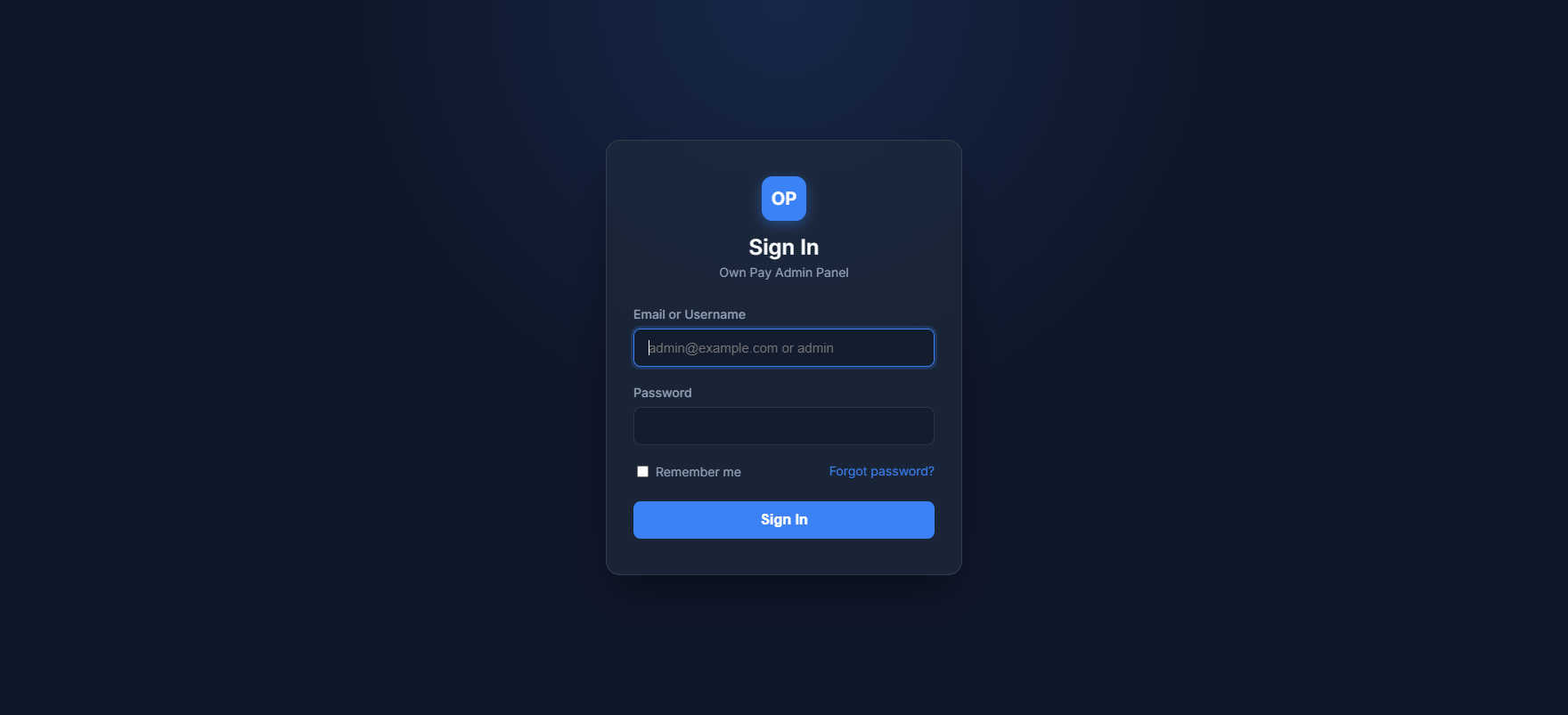
The Login page is the primary security gate of the OwnPay platform. To prevent unauthorized access to sensitive financial ledger data, only pre-registered staff members and the super-administrator can sign in. The page supports brute-force lockout protections and secure session management.
Getting Here
To access the login page:
- Open your web browser.
- Navigate to your master OwnPay domain followed by the login slug:
https://your-domain.com/login(Note: The default slug islogin, but this can be customized in the Landing Page settings for additional security).
Page Sections
The login interface consists of a single focused container:
Sign In Box
Contains fields to input your administrative credentials, a toggle to stay signed in, and links to recover forgotten credentials.
Fields & Options Reference
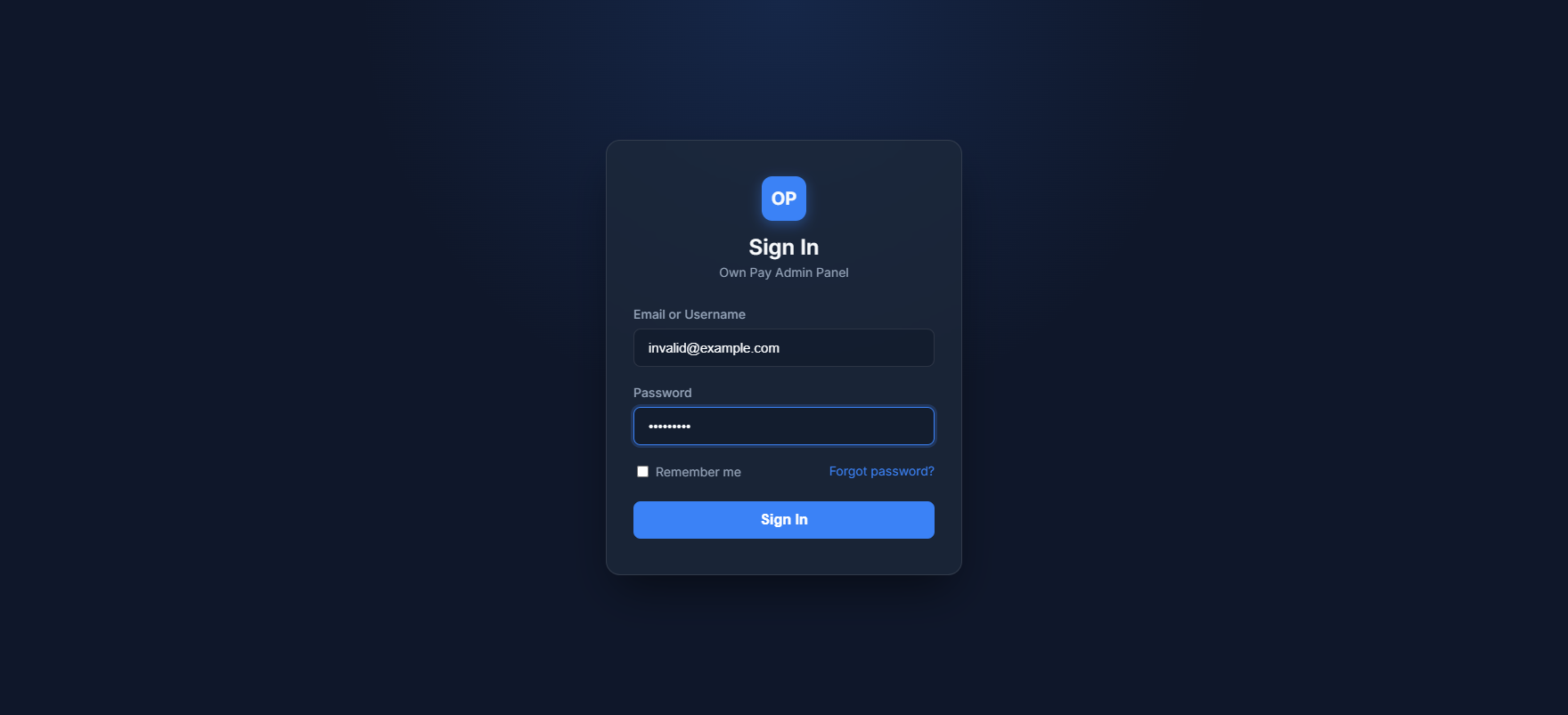
| Field / Option | Type | Required? | Default | Description |
|---|---|---|---|---|
| Email or Username | Text | Yes | — | The pre-registered email address or username associated with your user account. |
| Password | Password | Yes | — | The secure password associated with your account. Case-sensitive. |
| Remember me | Toggle / Checkbox | No | Unchecked | Keeps your session active for a longer duration so you do not have to log in repeatedly. |
| Sign In | Button | Yes | — | Submits your credentials to verify and logs you into the dashboard. |
| Forgot password? | Link | No | — | Redirects you to the password recovery request instructions page. |
Step-by-Step: How to Use This Page
- Enter your registered email address or username in the Email or Username field.
- Input your secure password in the Password field.
- (Optional) Check the Remember me box if you are logging in from a private, trusted device.
- Click the Sign In button.
- If Two-Factor Authentication (2FA) is enabled on your account, you will be redirected to the 2FA entry screen. Otherwise, you will land directly on the Dashboard.
Configuration Guide
The path and access rules of the login screen can be customized by the super-administrator:
- Admin Login URL Slug: You can change the route from
/loginto a customized slug (e.g./secure-gate-7x2) under the Landing Page Settings. If changed, any attempt to access the old/loginURL will return a 404 Not Found page. - Brute-Force Lockout: After five (5) failed login attempts within a 5-minute window, the account is temporarily locked. The lockout duration is 5 minutes before you can try again.
Best Practices
- ✅ Do: Change the default
/loginslug to a random, hard-to-guess word to mask the admin panel from automated bot scanners. - ✅ Do: Only check the Remember me option on personal, fully encrypted devices.
- ❌ Don't: Share login credentials among staff members. Always create dedicated staff accounts with role-based permissions.
- ❌ Don't: Attempt to log in over a public, unencrypted HTTP connection. Ensure the address begins with
https://.
Must Do
⚠️ Always ensure that the browser address bar displays the correct domain name and a secure lock icon (SSL/TLS active) before entering your credentials.
Optional / Can Skip
- Remember me is entirely optional and can be left unchecked for normal security compliance.
Common Mistakes & Troubleshooting
| Symptom | Likely Cause | Fix |
|---|---|---|
Invalid credentials error message | Typo in email/username or password. | Re-verify your credentials and type them carefully. Note that passwords are case-sensitive. |
Account temporarily locked error | Too many incorrect login attempts in a short timeframe. | Wait 5 minutes for the lockout window to expire, then try again. |
404 Not Found when visiting /login | The admin login slug has been changed by the super-administrator. | Access the admin panel using the custom slug configured in your settings. |
Related Pages
- Forgot Password — Request password reset instructions.
- Two-Factor Authentication — The next step in the login flow if 2FA is active.