

Two-Factor Authentication (2FA)
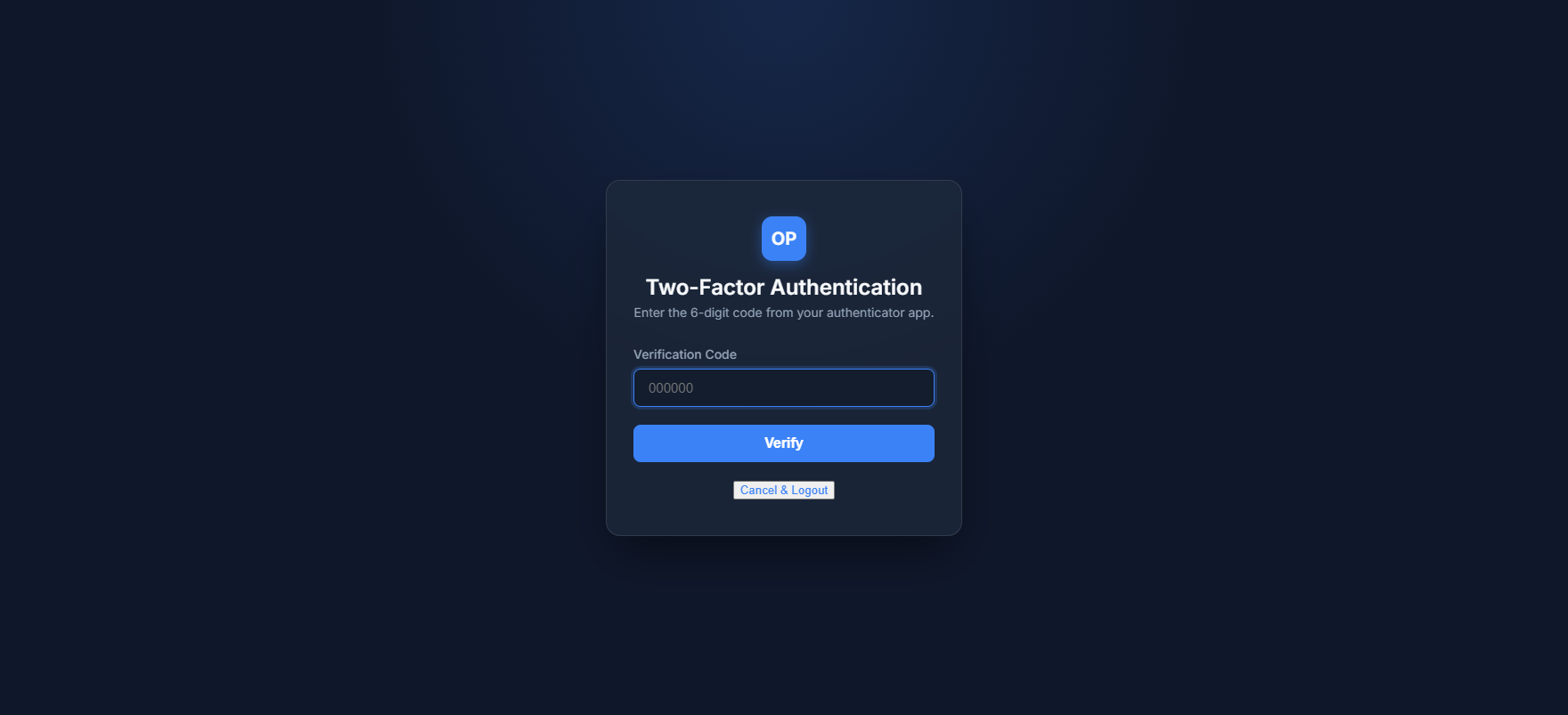
Purpose: Verification screen to enter the 6-digit TOTP code when 2FA is enabled on an account.
Overview
If Two-Factor Authentication (2FA) is enabled for your account, the login flow requires you to verify your identity using a mobile authenticator app (such as Google Authenticator, Authy, or Bitwarden) after entering your correct email and password. This screen receives the 6-digit verification code.
Getting Here
To get to this page:
- Navigate to the login page and enter your correct Email or Username and Password.
- Click Sign In.
- If 2FA is active, you will be redirected automatically to
/2fa.
Page Sections
The 2FA page consists of a single verification form:
Verification Box
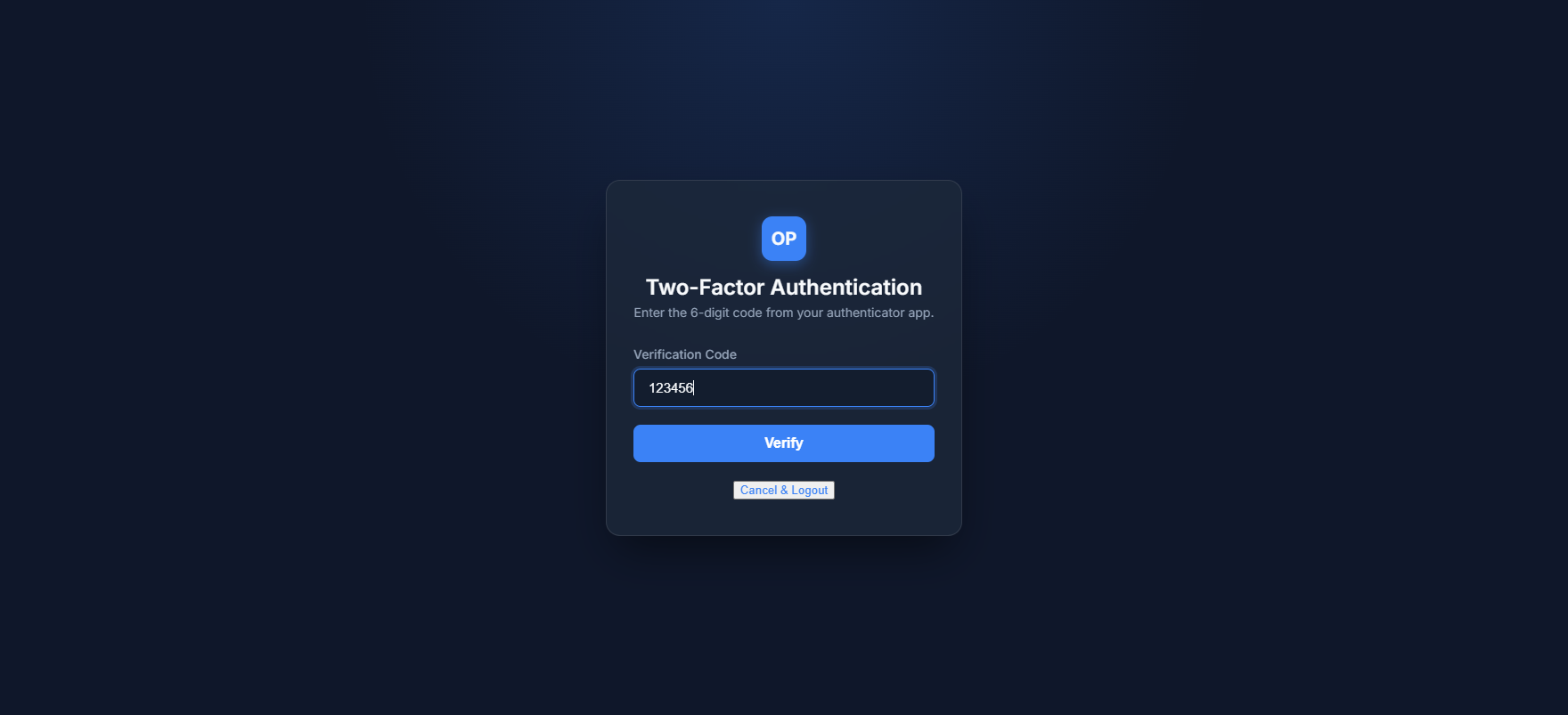
Contains the field to input the 6-digit code, the verification submission action, and the cancel option.
Fields & Options Reference
| Field / Option | Type | Required? | Default | Description |
|---|---|---|---|---|
| Verification Code | Text / Numeric | Yes | — | The 6-digit code generated by your authenticator application. |
| Verify | Button | Yes | — | Submits and verifies the entered code to complete your login session. |
| Cancel & Logout | Button / Link | No | — | Cancels the login process and logs you out completely, returning to the login page. |
Step-by-Step: How to Use This Page
- Open your authenticator app on your mobile device.
- Locate the entry for OwnPay (which maps to your login email).
- Copy or read the current active 6-digit numeric code.
- Enter the code in the Verification Code field on the screen.
- Click Verify.
- Upon successful verification, you will be logged in and redirected to the Dashboard.
Configuration Guide
- Clock Drift Tollerance: The system allows up to 60 seconds (2 time slices) of clock drift between your mobile device and the server.
- Replay Protection: A code cannot be used more than once. The system tracks the last used time slice window and rejects duplicate submissions to prevent session hijacking.
- Rate Limiting: Entering too many incorrect codes will result in your session hitting the rate limiter, locking you out from further attempts for 5 minutes.
Best Practices
- ✅ Do: Synchronize the time on your mobile device to ensure the codes generated match the server's time precisely.
- ✅ Do: Click Cancel & Logout if you are logging in from a public computer and cannot complete the 2FA step.
- ❌ Don't: Share your 2FA secret key or authenticator app entries with anyone.
- ❌ Don't: Expose your backup recovery keys to unauthorized users.
Must Do
⚠️ You must submit the code within its 30-second validity window. If the timer in your authenticator app expires and shows a new code, type the new code instead.
Optional / Can Skip
Not applicable for this page.
Common Mistakes & Troubleshooting
| Symptom | Likely Cause | Fix |
|---|---|---|
Invalid or expired 2FA code error | Your mobile device clock is out of sync, or the code has expired. | Verify that your phone's time settings are set to automatic. If it still fails, wait for the next 30-second code to generate in the app and type it quickly. |
2FA secret could not be decrypted error | System decryption key mismatch. | Contact your system administrator to revoke and re-enable 2FA on your account. |
Rate limit exceeded error | Too many invalid submissions. | Wait 5 minutes for the rate limit window to expire, then log in again. |
Related Pages
- Login — The initial credentials screen.
- My Account — Where to set up and enable/disable 2FA.