

Plugins
Purpose: Manage modular platform extensions, install custom addons, and toggle gateway services.
Overview
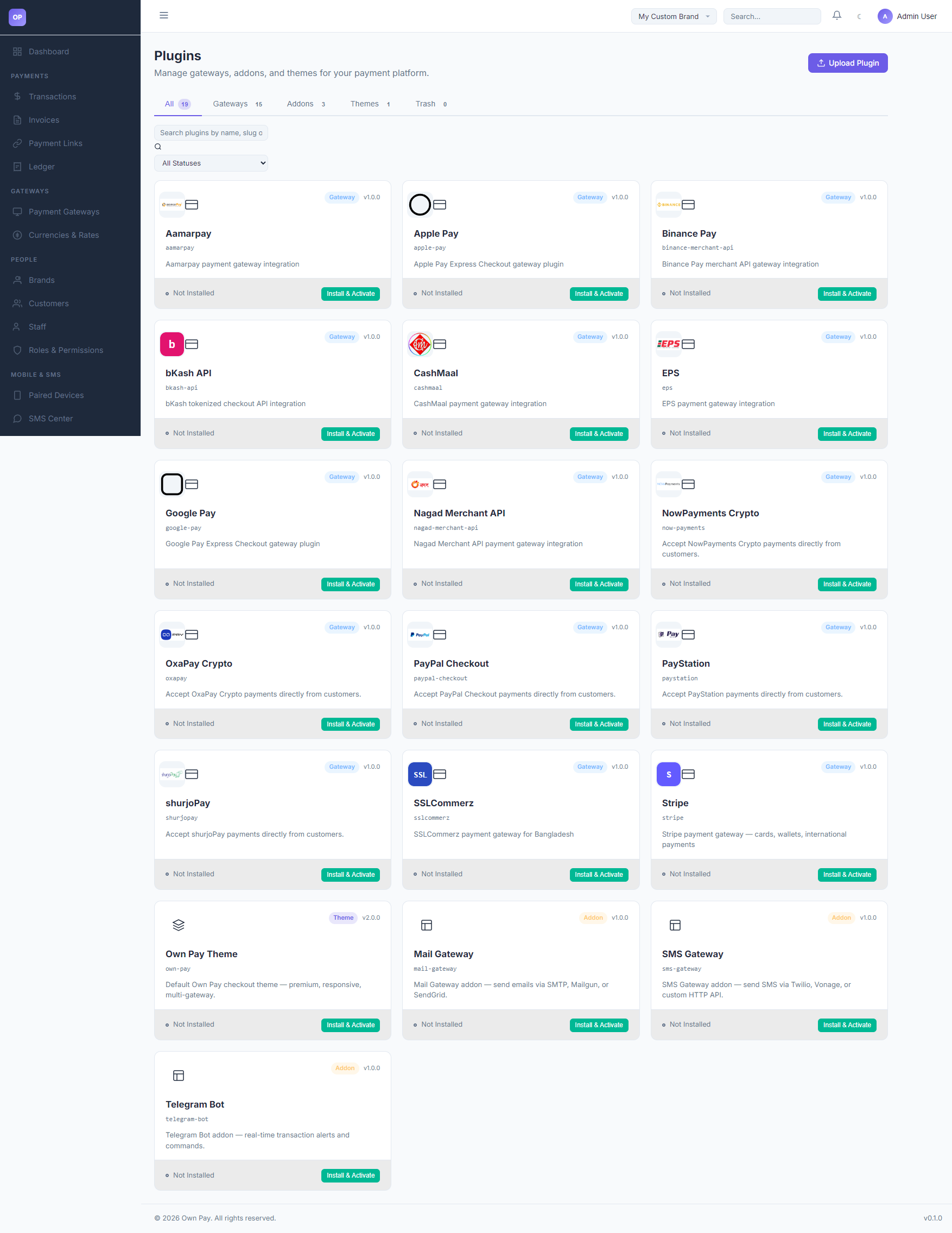
The Plugins manager allows administrators to extend OwnPay's core capabilities. Extensions are packaged as plugins and are grouped into three categories: Gateways (API connectors), Addons (additional platform features like email alerts or Telegram bots), and Themes (layout designs).
Getting Here
To access the Plugins manager:
- Log in to the OwnPay admin dashboard as the super-administrator.
- Under the SYSTEM section in the left sidebar, click Plugins.
Page Sections
The Plugins manager is structured into the following areas:
1. Plugin Category Tabs
Filter extensions by type:
- All: Shows all 19 plugins on the server.
- Gateways: Lists only payment processor connectors (e.g. Aamarpay, SSLCommerz, Stripe).
- Addons: Displays helper integrations (
mail-gateway,sms-gateway,telegram-bot). - Themes: Shows visual templates.
- Trash: Displays uninstalled plugins queued for deletion.
2. Search & Filter Bar
- Search Textbox: Locate plugins by name or slug.
- Status Dropdown: Filter by
Active,Inactive, orNot Installedstatus states.
3. Plugin Profile Cards
Each card displays:
- Branding Icon: Visual logo of the extension.
- Details: Extension name, type tag (Gateway/Addon/Theme), version, and description.
- Controls: Click Install & Activate (or Deactivate if active) to modify execution states.
4. Upload Plugin Wizard
Located by clicking the Upload Plugin link in the header:
- Allows developers to upload a custom packaged
.zipplugin file directly to the server.
Step-by-Step: How to Use This Page
Installing and Activating a Plugin
- Navigate to the Plugins manager.
- Search or browse to locate the extension (e.g., Telegram Bot).
- Click the Install & Activate button.
- The system will extract the package, run configuration migrations, and change the status. If it is a gateway, it will now appear in your Payment Gateways list.
Configuration Guide
- The Plugin Sandbox:
- OwnPay runs plugins under a secure sandbox (
PluginSandboxorPluginLoader) to isolate third-party code. - Manifest slugs in database records must match filesystem folder names exactly.
- Logo paths are copied dynamically from the modules folder to the public assets directory on the fly when the logo is rendered.
- OwnPay runs plugins under a secure sandbox (
Best Practices
- ✅ Do: Deactivate plugins you are not using to improve system performance.
- ✅ Do: Check for version compatibility in the manifest description before uploading manual updates.
- ❌ Don't: Upload zip archives from untrusted sources, as plugins run with administrative permissions.
- ❌ Don't: Rename plugin folder directories directly via FTP/file manager, as this will break database manifest lookups.
Related Pages
- Payment Gateways — Configure credentials for activated gateways.
- Themes — Manage active visual styles.
- System Update — Upload master platform core updates.